A cashier for supermarkets and grocery shops: the carton and the piece, the scale label, and an expiry date per batch.
Dashing is for a grocery or supermarket with a busy evening counter: the same item sold by the carton and by the piece with a barcode each, the scale label read at its weight or price, receipts printed on any printer, barcode labels printed from stock, a batch and expiry date on milk and cheese, and neighbors who buy on credit. Free, and it stays free. Every sale, payment and return posts to the books by itself, so you can run the shop without an accountant. It works in Arabic, Kurdish and English and in seventeen currencies, and the cashier keeps selling when the internet cuts.
Your first day
A new shop opens on the till. Type what the customer paid and press Charge for your first sale, or type a product name and price right there and press Add to sale. Then open the first-products screen and add the few things you sell all day with name, sale price and how many you have, bottled water and tea say, or scan a barcode the cashier does not know and add the item on the spot. After a sale, press Receipt on WhatsApp: WhatsApp opens with a link to the receipt, and nothing is sent until you tap send. For the neighbor who pays at the end of the week, pick Credit, choose the customer or add them by name and phone, and say when they pay; the invoice is booked as a debt on their account.
One evening at the counter
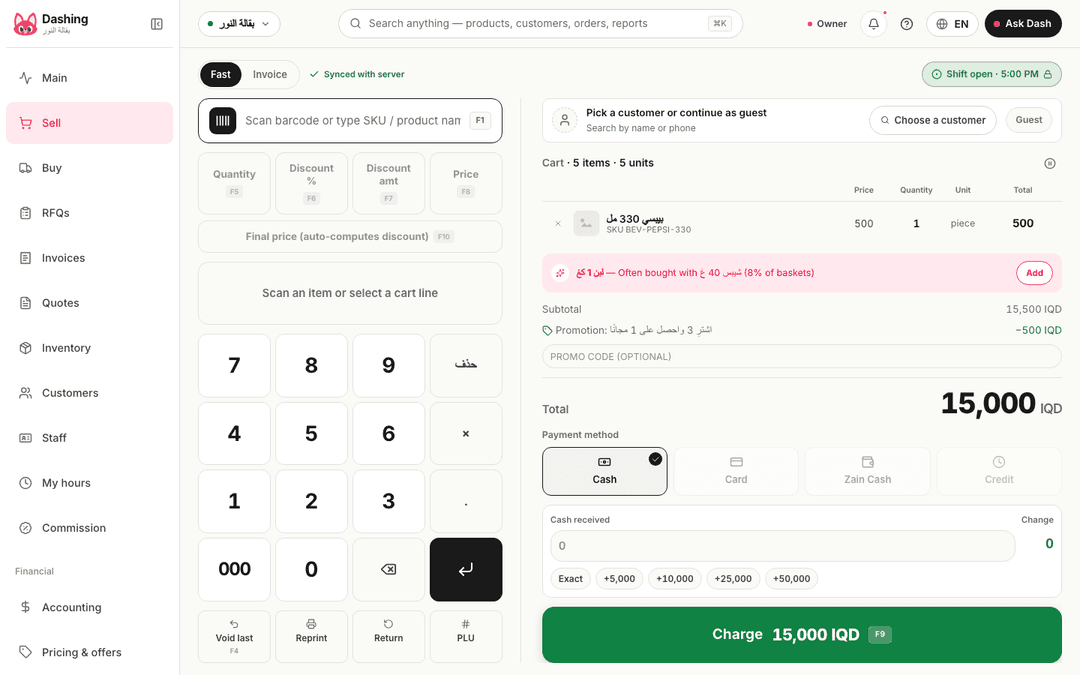
F1 puts the cursor back in the scan box. A case of 12 bottles of water scans with its own barcode and deducts 12; the single bottle scans with its own and deducts 1; stock is kept in the base unit. A kilo and a quarter of tomatoes: scan the scale label and it is added at its weight, or type 1.25 at the price per kilo. A customer buying on credit is picked with F2 and the invoice posts to their account. Payment is cash with the change worked out, or card recorded as its own payment method, and the receipt is 80 mm paper from the print dialog or a WhatsApp link valid for a year.
Try Dashing in your shop, free, no card.
Start freeWhat expires and what runs out
- Every delivery is recorded as a batch with its expiry date; the till suggests the nearest expiry, and an expired batch is flagged and can only be sold with an explicit confirmation, recorded under the name of whoever gave it
- A home-screen card for what expires within 30 days; the window can be changed in Settings
- A minimum per item: the low-stock list, a home-screen card, and a draft purchase order from the suggestion in one tap
- A supplier delivery received in parts; the payable is booked for what arrived each time
- Items import from a CSV file with Arabic or English headers; 500 items with their stock take about 6 seconds
Closing the day
A shift opens with a float and closes with a count; the difference between the counted and expected amounts is booked automatically, and the shift report shows sales and returns by payment method and compares revenue, invoice count and average ticket with the same weekday a week earlier. The shift cannot close until every sale saved on the device has uploaded.
What it does not do
It does not connect to the scale itself: it reads the barcode label the scale prints, once you set its prefix in Settings, and takes no weight directly from the scale. No customer-facing display.
Common questions
Can it keep up with the evening rush?
Each scan adds the line to the cart instantly, the total is large enough to read from the other side of the counter, payment is one tap, and the F1 to F10 shortcuts cover the most common actions.
How do I sell the piece and the carton of the same item?
Define the units and the conversion factor once and give each unit its barcode and price; stock is deducted in the base unit.
Does it read a scale barcode that carries the weight?
Yes. In Settings you set the scale prefix, how many digits the item code has and whether the rest is a weight in grams or a price, and the label is added as a line at that weight. If your scale prints no label, type the weight with fractions.
From the blog
- How to open a grocery shop: steps, costs, first stock, marginsHow to open a neighbourhood grocery shop: the steps, what drives the costs, choosing first stock, pricing, a daily routine, common mistakes and a checklist.
- How to open a supermarket or mini-market: steps, costs, stockA practical guide to opening a supermarket or mini-market: the steps, what drives each cost, choosing first stock, pricing, a daily routine and a checklist.
- Barcodes for a shop: EAN-13, in-store numbers and carton barcodesWhat a shop owner needs to know about barcodes: what the EAN-13 digits mean, why the prefix is not the country of origin, in-store numbers, and carton vs piece.
- Customer debts: collecting them over WhatsApp without awkwardnessRunning credit sales in a shop: a credit limit per customer, debt aging, a statement that reaches the customer on WhatsApp, and the overdue card every morning.
Related
- Cashier (POS)Cashier (POS) Software: Barcode, Receipt, WhatsApp
- InventoryInventory software for shops: branches and expiry
- Works offlineCashier System That Works Offline, Then Syncs
- InvoicingInvoicing software for shops: invoices and quotes
- Profit margin calculatorProfit margin calculator: margin, markup and the price for a target
Try it in your shop, free, no card.
The free plan includes an offline cashier with stock, debts and accounting, and it stays free forever. What it includes