Adding a new product: name, price, barcode and minimum stock
From the inventory screen: "New product" with name, sell price, cost, barcode, minimum stock, category and image, and when to enable variants, serials or batches.
Verified against the product on 4 min read
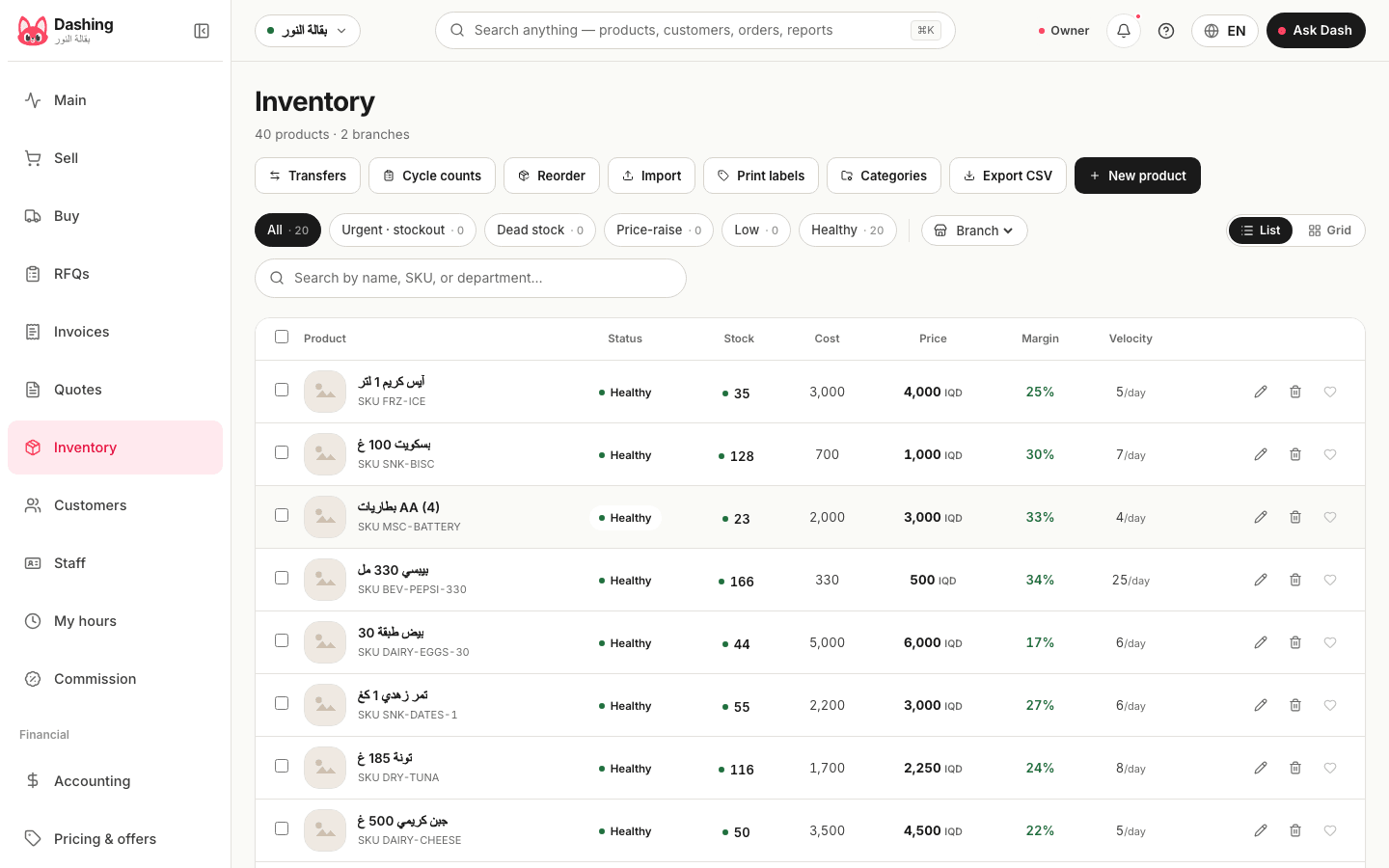
You can sell first
You do not have to add products before your first sale. Type an amount at the till and sell; add products afterwards, when it suits you. After the first sale, "Finish setup" appears in the app menu and leads back to the add-products screen.
Steps
- Open "Inventory" and press "New product".
- Enter the "Product name" as it should appear on the receipt, the "Sell price" in your home currency, and the "Cost price" (needed to compute profit). A cost can have a fraction: a carton of 20 bought for 4,170 costs 208.5 a piece. Press "Bought by the carton?" under the field, type the carton price and the pieces in it, and the cost is filled in for you.
- Scan (the camera button inside the field) or type the "Barcode" if the pack has one. A scanned packaged product fills in its details (name, size, photo). Leave it empty for loose or local items. One barcode belongs to one product: if another product already has it, the app refuses it and names that product.
- Set the "Min": when stock falls below it, the item appears in the reorder suggestions and the home-screen card.
- Pick the "Category" (or create one from "New category"), and upload an image from "Product image" if you want it on the till grid.
- For clothing and shoes: enable "This product has variants" and "Add variant" for each size/colour with its barcode. For devices: enable the serial/IMEI. For medicines and food: enable batches and expiry. Leave them off for the rest.
- Press "Save product". The quantity starts at zero until you enter it with a stock adjustment or by receiving a purchase order.
A product or a service? In the "Product type" field choose "Product" or "Service". A service (a haircut, a repair, delivery) has no stock, so the form drops quantity, minimum, units and variants, and the till never says it is out of stock. A quantity like 9999 typed to fake "unlimited" stock is what the Service type is for. If you enter a very large quantity anyway, a short note under the field asks you to check it; saving is never blocked. You cannot switch a product that still has stock to a service: bring its stock to zero first.
Does a service use up stock, like a repair that uses a part? On a service, add the items under "Materials used": search the item, set how much one sale uses, press Add. Each sale of the service then takes those quantities out of stock and counts their cost as the service cost, so the Cost field shows the total and cannot be typed. A void or a return puts the materials back at the cost they were taken at. A service with no materials keeps the cost you type.
Adding several in a row? Press "Save and add another" instead: the form stays open, clears the name, prices, barcode, quantity and image, and keeps the category and unit. A line "Saved: …" confirms each one.
Changing the quantity later? Open the product and press "Edit". While nothing has happened to the product (no sale, no purchase, no transfer, no count, no adjustment) the "Starting quantity" box is open: type the new number and save, and the stock and your books change with it. Once anything has happened, the box is read-only and shows the quantity the product started with, not what is on the shelf now; use the pink "Adjust stock" button beside it, which opens the item page with the adjustment ready.
If you already have a file of products (Excel or CSV), open "Inventory" and press "Import", or go to Settings, "Your data", "Import products from a file". See importing products.
Notes
- Later price changes save immediately from the item page and are written to the audit log under the name of whoever changed them.
- The product itself is available in every branch; the quantity is per branch.
What the system does not do
It never fills a price. When a barcode is already known, it first fills the name from what other shops named it; otherwise, for a scanned packaged product, it suggests the name, size, a category you already have and the photo from the public Open Food Facts lists, only into empty fields; check them and press Save. Local items are often not in those lists. When no match is found, or we couldn't check (offline or the service is down), we say so and the form opens to fill in by hand, with the cursor on the name.
Common questions
- The item has no factory barcode.
- Leave "Barcode" empty; an item code (SKU) is created for search, and you can print a barcode label for it from the item page ([print labels](/help/print-barcode-labels)).
- How do I enter the current quantity?
- From the item page, "Adjust stock" with the reason "Opening quantity" and the cost, or with a cycle count after adding every item.
Was this page helpful?
In the same section
- Adjusting one item's quantity: restock, damage, correction, or openingFrom the item page: "Adjust stock" with a reason; Restock, Damage / loss, Count correction, Opening quantity, then "Apply"; every adjustment is booked and logged.
- Categories: creating them and categorizing items in bulkAdding a category from "Manage categories" or while creating a product, categorizing several items at once, and where categories show at the till and in reports.
- Changing the prices of many items at once, with undoTick products in Inventory, type a percentage or a fixed price and apply it. You have 10 seconds to press Undo, and each change is kept in the product's price history.
- Cycle counts: counting a shelf without stopping salesCreate a "New count", enter the "Counted quantity" per item, review "Short or over" and its value, then "Apply count"; differences are booked automatically.
- Deleting a product: it is archived, and you can restore itDeleting a product archives it. It stops showing at the till and in lists, its sales and stock stay, and you can bring it back any time.
- Importing products from a CSV file (with opening quantities)A CSV with code, name and price (required) plus cost, quantity and barcode (optional), then "Import products": a dry run first; per-row errors never stop the rest.
This page is also available in العربية · کوردی
Read also
Did not find what you needed? Message us on WhatsApp