Customers & debts
Adding a customer and setting a credit limit
Creating a customer from the customers screen or the till, setting the credit limit, price list and group, and what happens when a credit invoice exceeds the limit.
Verified against the product on 1 min read
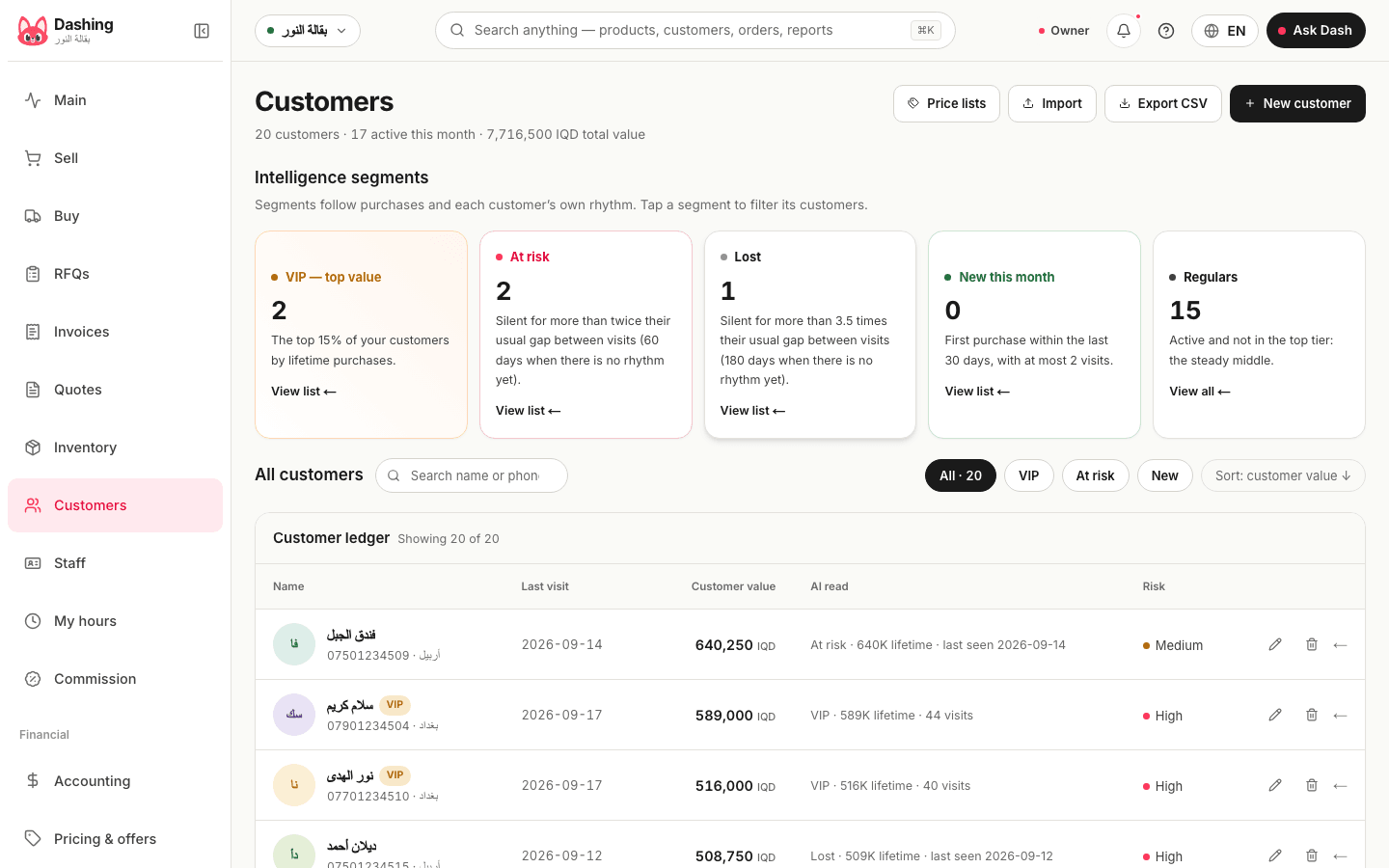
Steps
- Open "Customers" and press "New" (or from the till: "Add customer" during a credit sale).
- Enter the name and phone number (used to send the statement on WhatsApp), and the city if you like.
- Set the credit limit in your home currency, or leave it at "No limit".
- Optionally: a "Price list" (say "wholesale") to re-price their cart automatically at the till, and the "Group / segment" that offers target.
- Save. The customer page shows the amount left to pay, the four aging buckets, the "Oldest unpaid invoice", and the "Collect payment" and "Account statement" buttons.
Notes
- To import a whole customer list: "Import customers" from a CSV file with name, phone and city columns (old balances are not imported).
- A customer file that is just one column of names with no header imports as is.
What the system does not do
It does not charge late interest, and it does not send reminders by itself; a reminder is a message you send from WhatsApp.
Selling on account with no connection
Without a connection, the credit left for a customer is the figure Dashing last showed, minus what this till has already put on their account and not yet sent. A sale on account above that figure is stopped at the till unless you may override the limit.
Common questions
- Can I sell to a customer with no credit limit?
- Yes, "No limit" means credit is never stopped. A realistic limit per customer, with an override permission for staff you trust, is better.
- What happens at the till when the limit is exceeded?
- The over-limit message shows the limit and what is available, and "Authorize as owner" or an override permission is required; the reason is kept in the audit log.
Was this page helpful?
In the same section
- A standing discount for a regular customerOpen the customer, press edit and fill "Standing discount (%)": every sale for that customer gets the discount automatically. Leave it empty to remove it.
- Collecting a payment from a customer who owes youRecord a payment from the balance block on the customer page: amount, method and notes, allocated to invoices oldest-first.
- Importing customers and their old debts from a CSV fileA CSV with the customer name, optional phone, email and city, plus Debt and Debt date for old balances. A dry run first; a bad row never stops the rest.
- Issuing a credit or debit note for a customer or supplierWhen to use a credit note (reduce what a customer owes) or a debit note (raise it), and how to issue one from the customer or supplier page.
- Loyalty points: turn them on, set the rates, use them at the tillSwitch on the loyalty program in Settings, choose how many points a sale earns and what a point is worth, then let a customer spend their points at the till.
- Recording a customer's debt and the date they will paySell on credit, tap the due date right after the sale (a week, two weeks or a month), and set payment terms in days on the customer.
This page is also available in العربية · کوردی
Read also
Did not find what you needed? Message us on WhatsApp