Staff & shifts
Adding a staff member and setting screen permissions
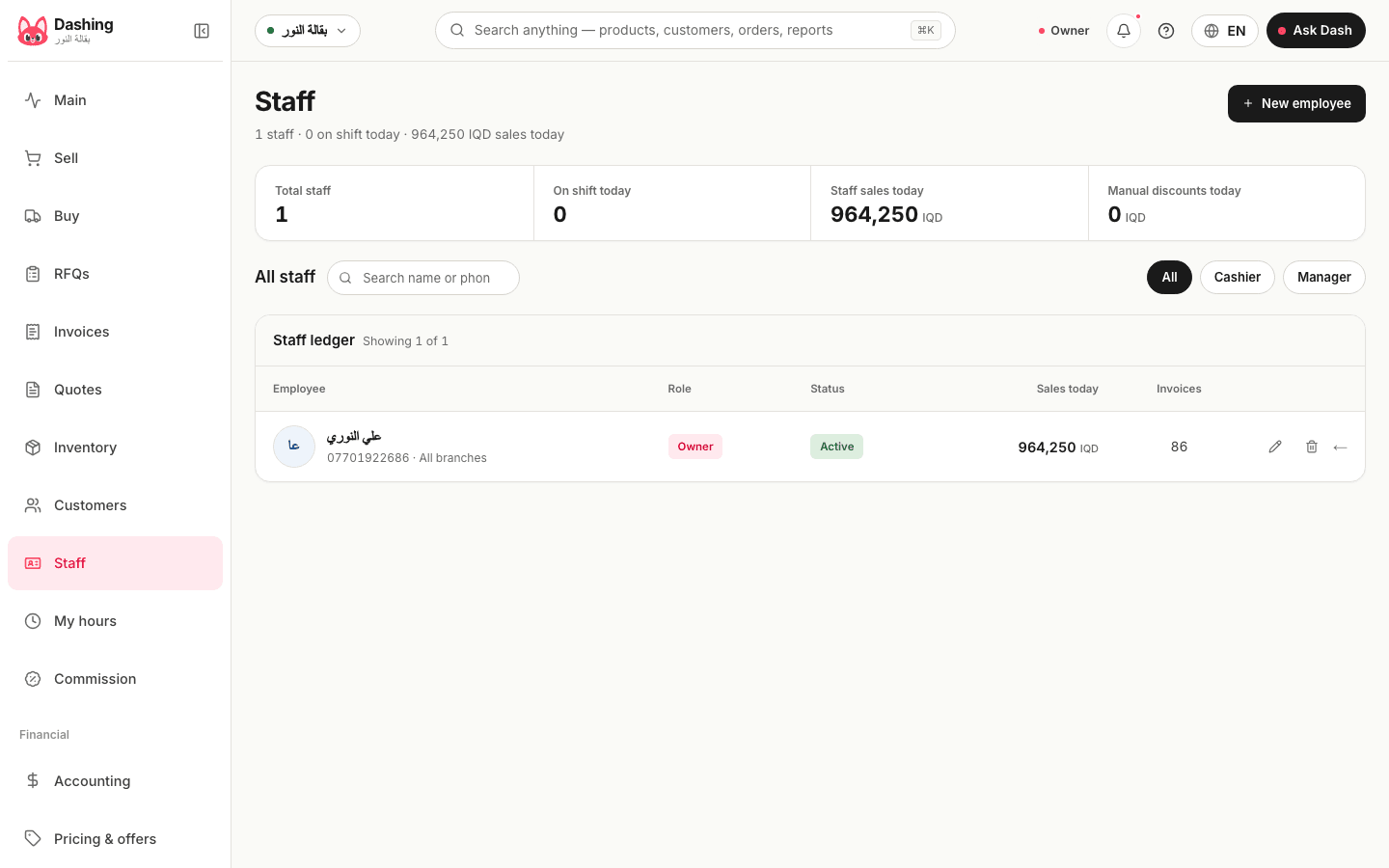
From the staff screen: "New employee" with name, role, login email and password, then "Screen permissions" per screen; what a cashier sees, and where actions are logged.
Verified against the product on 1 min read
Steps
- Open "Staff" and press "New employee".
- Enter the name, the "Role" ("Manager" or "Cashier"…), the branch, the "Login email" and "Password" (at least 8 characters, not only digits, not a common password, not close to the name or email), then "Save". Share the login details with them.
- Open "Permissions" on their page: "Screen permissions" lists every screen as "Screen enabled" or disabled. Turn off what is not theirs (reports, settings, inventory…), then "Save permissions".
- The sensitive permissions — discounts above the cap, credit-limit override, opening/closing a shift — grant only to people you trust; every use is written with a reason to the audit log.
- A staff member who left: use the bin on their row to remove them from your shop (their past sales and records stay). You cannot remove yourself or the owner. Only the Dashing team can switch an account off; message support for that.
Notes
- Dash respects the same permissions: it does not answer a staff member about a screen they cannot see.
- The "Shift schedule" on the staff page sets their weekly shifts.
What the system does not do
It does not send an invitation email; you share the login details. And no payroll.
Common questions
- The employee forgot their password.
- From their page, "Reset password", then "Set password", and share it with them; they can change it after their first sign-in.
- Can a cashier delete an invoice or see the profit?
- Nobody deletes invoices. Profit and reports are screens granted by permission; the default cashier does not see them.
Was this page helpful?
In the same section
- Cashier commission: create a rule, set a sales target, see the teamCreate a commission rule as a percent of revenue or of margin, per day, week or month, set a sales target, and see each cashier's commission this month.
- Clocking in and out and seeing your working hoursOpen "My hours", press "Clock in" when you start and "Clock out" when you finish; the screen keeps your sessions, and a manager sees the team's hours.
- Opening a shift, recording cash movements, and closing with a countThe daily drawer cycle: "Open shift" with the opening count, cash in / out during the shift, then "Close shift" with the counted cash and a reason for the variance.
This page is also available in العربية · کوردی
Read also
Did not find what you needed? Message us on WhatsApp