Hotels & rentals
Printing the receipt of a booking
Open the booking invoice, send it to the guest on WhatsApp, or print it. To get a PDF, save it from the print window.
Verified against the product on 1 min read
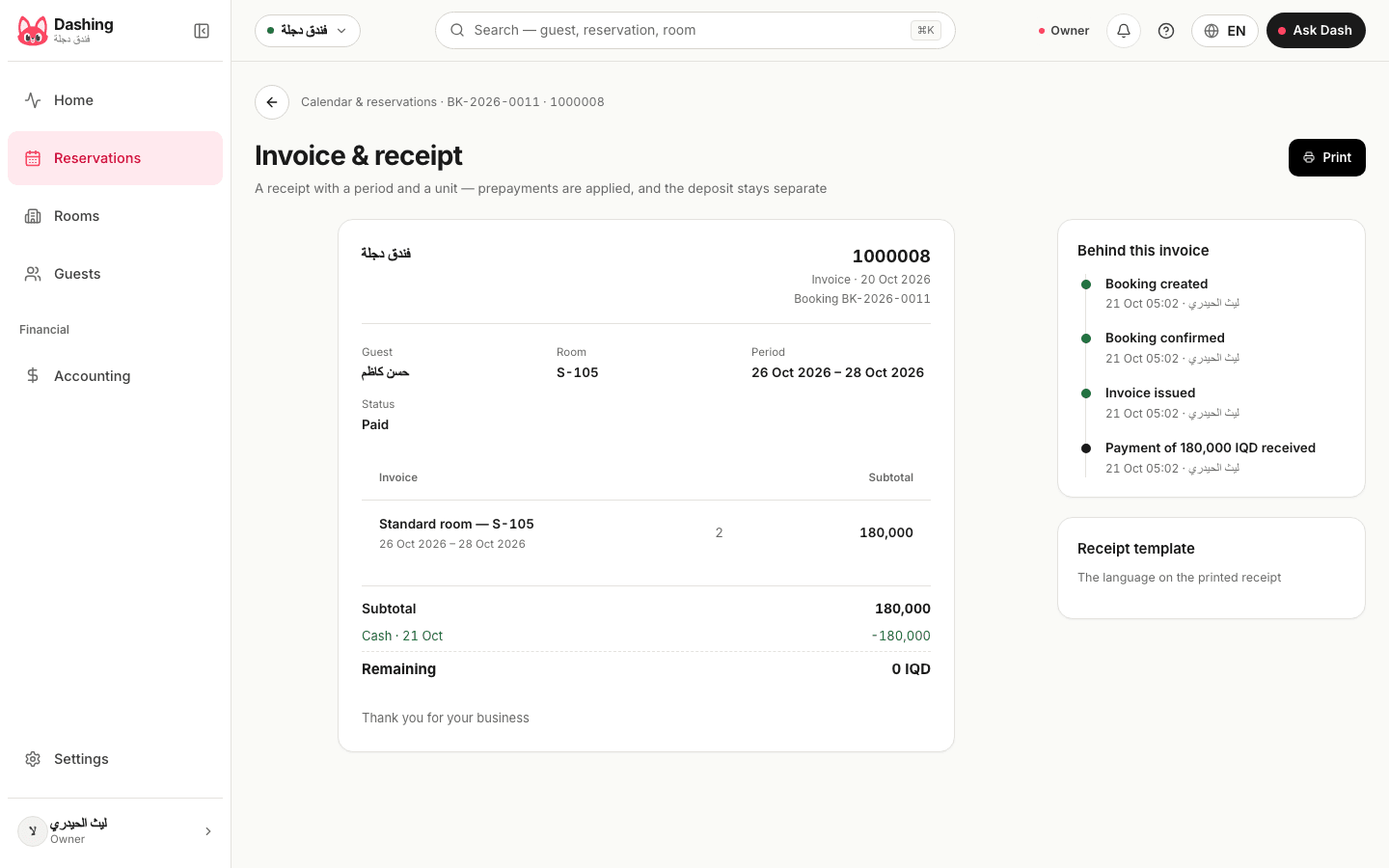
The receipt of a booking is the invoice page. It shows the guest, the room, the period, the status, the subtotal and what remains.
Steps
- Open the reservation and press "Invoice". The button shows once an invoice exists.
- Check the details: the guest or customer, the room, the period, the status, the subtotal and "Remaining".
- Under "Receipt template" choose the language of the printed receipt.
- Press "Print". The browser's print window opens.
- Choose a printer. To keep a file instead, choose "Save as PDF" in the same window.
- To send it instead, press "Send on WhatsApp". With a guest phone number the chat with the guest opens with the message and the link ready, otherwise you pick the contact. On a phone the share sheet may open first. The link opens a read-only page with the stay or rental dates, the amounts and what remains.
Notes
- Advances are applied on the receipt. A deposit stays separate from it.
- If the invoice does not exist yet (billing is on completion), check out or confirm first, then open it.
- A booking can have more than one invoice, for example one more for each charge you add.
What the system does not do
- Nothing is sent to the guest by itself. You press the button and you press send in WhatsApp.
- The PDF button is not ready yet. Use "Save as PDF" in the print window.
Common questions
- Can I send the receipt on WhatsApp from here?
- Yes. Press "Send on WhatsApp" on the receipt. If the guest has a phone number, the chat with the guest opens with the message ready. If not, you choose the contact. The guest opens a page with the receipt, no sign-in needed.
Was this page helpful?
In the same section
- Checking a guest in and outAssign the room, check in on arrival, add charges during the stay, check out, then settle what is held. Also cancel and no-show.
- Deposits, advances and payments on a bookingRecord a payment, take an advance, hold a deposit, and settle what is held at the end: refund it, keep it, or apply it to the invoice.
- Renting an office or apartment with a monthly contractDraft the contract in three steps, activate it, record rent and the security deposit, then give notice, renew or close it. Rentals app.
- Setting up room types and roomsAdd a room type with its price and rules, then its rooms, in three steps. The same screen sets up halls, offices and apartments in the rentals app.
- Taking a reservation or a bookingPick the room and dates, find or add the guest, check the price, then confirm or hold the room for a few hours.
This page is also available in العربية · کوردی
Read also
Did not find what you needed? Message us on WhatsApp