Hotels & rentals
Checking a guest in and out
Assign the room, check in on arrival, add charges during the stay, check out, then settle what is held. Also cancel and no-show.
Verified against the product on 1 min read
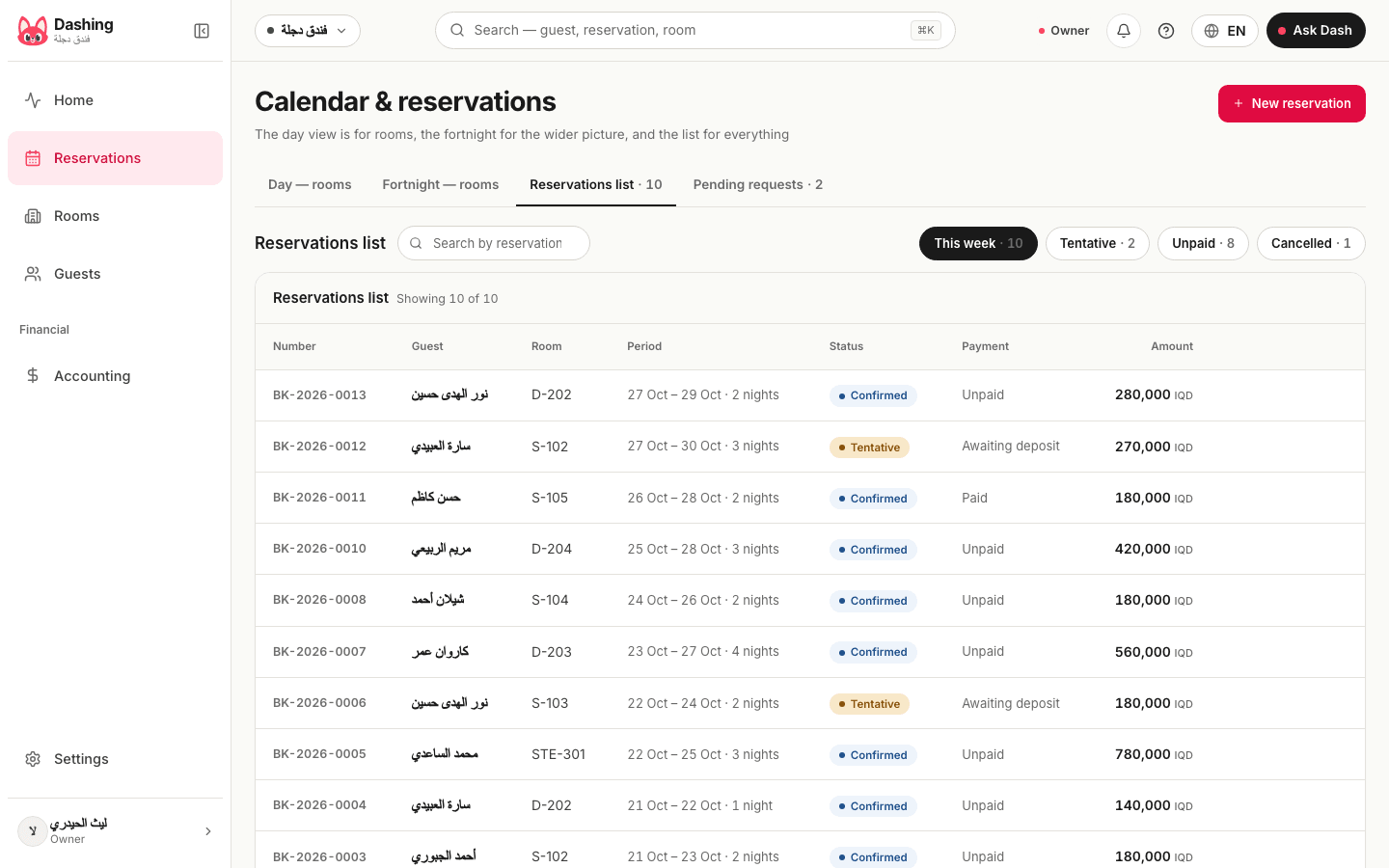
Everything starts from the reservation page. Open "Reservations", find the guest (search by number, guest or room) and open the reservation.
Steps
- If the reservation has no room yet, press "Assign a room" and pick a free room. The system refuses a room that is taken for those dates.
- When the guest arrives, press "Check in". If the room was not chosen yet, you pick it in the same window. The reservation becomes in progress.
- During the stay, press "Add a charge" for anything extra. It is written on a new invoice for the reservation. To hold a guarantee, press "Receive a deposit".
- When the guest leaves, press "Check out". The stay ends. If billing is set on completion, the invoice is issued now.
- Take what is still owed with "Record a payment".
- If something is held, press "Settle the deposit" or "Settle the advance" and decide where each amount goes. See the article on deposits and payments.
Notes
- Cancel before arrival with "Cancel reservation". The window shows the cancellation fee first, worked out from the tiers of the room type. Write the reason; it is saved in the activity log.
- "Mark as no-show" cancels the reservation and applies the no-show fee, if there is one. It is refused until the grace period ends.
- The reservation page shows stages (request, temporary hold, confirmed, balance, arrival, departure), charges and fees, the payment schedule and the activity log.
- In the rentals app, check-in and check-out appear only for space types set to need them.
What the system does not do
- It does not mark rooms as dirty or clean, and it has no housekeeping list.
- It does not send arrival or departure messages to the guest.
Common questions
- Why is there no Check in button?
- The reservation must be confirmed and not yet started, and the room type must be one that needs check-in. Hotel rooms do. If a hold is still temporary, confirm it first.
- Why does "Mark as no-show" refuse?
- It works only after the grace period of the room type has ended. Before that the system refuses it.
Was this page helpful?
In the same section
- Deposits, advances and payments on a bookingRecord a payment, take an advance, hold a deposit, and settle what is held at the end: refund it, keep it, or apply it to the invoice.
- Printing the receipt of a bookingOpen the booking invoice, send it to the guest on WhatsApp, or print it. To get a PDF, save it from the print window.
- Renting an office or apartment with a monthly contractDraft the contract in three steps, activate it, record rent and the security deposit, then give notice, renew or close it. Rentals app.
- Setting up room types and roomsAdd a room type with its price and rules, then its rooms, in three steps. The same screen sets up halls, offices and apartments in the rentals app.
- Taking a reservation or a bookingPick the room and dates, find or add the guest, check the price, then confirm or hold the room for a few hours.
This page is also available in العربية · کوردی
Read also
Did not find what you needed? Message us on WhatsApp